Documentation Index
Fetch the complete documentation index at: https://infisical-saif-eng-4890-add-support-for-oracle-db-access-in.mintlify.app/llms.txt
Use this file to discover all available pages before exploring further.
Rotation Type: Dual-PhaseThis rotation maintains two active credential sets with overlapping validity, ensuring zero-downtime during rotation cycles.
Prerequisites
- Ensure you’ve configured the service principal for rotation. See Configure Permissions for Secret Rotation.
- Ensure your network security policies allow incoming requests from Infisical to this rotation provider, if network restrictions apply.
Create a Databricks Service Principal Secret Rotation in Infisical
- Infisical UI
- API
-
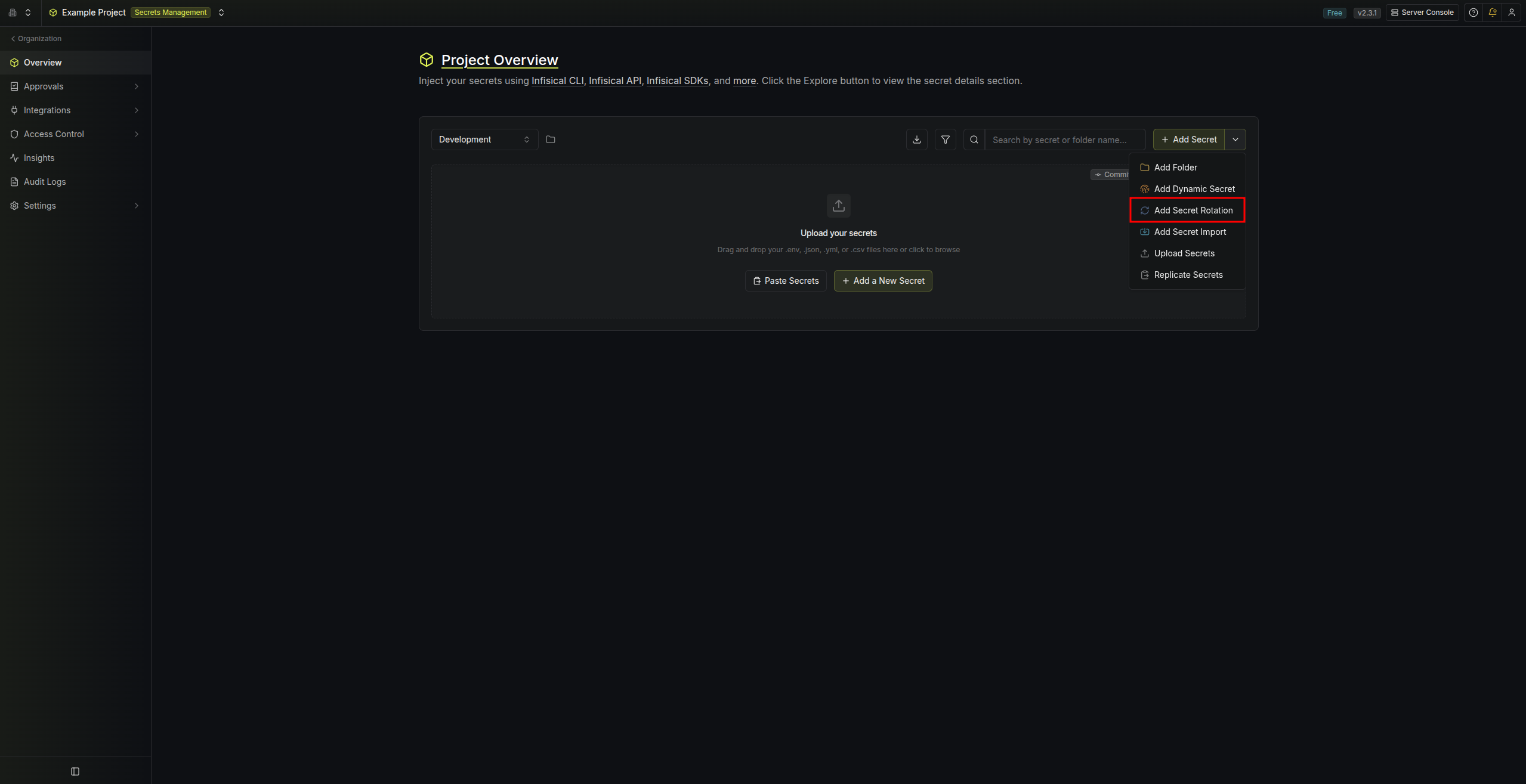
Navigate to your Secret Manager Project’s Dashboard and select Add Secret Rotation from the actions dropdown.
-
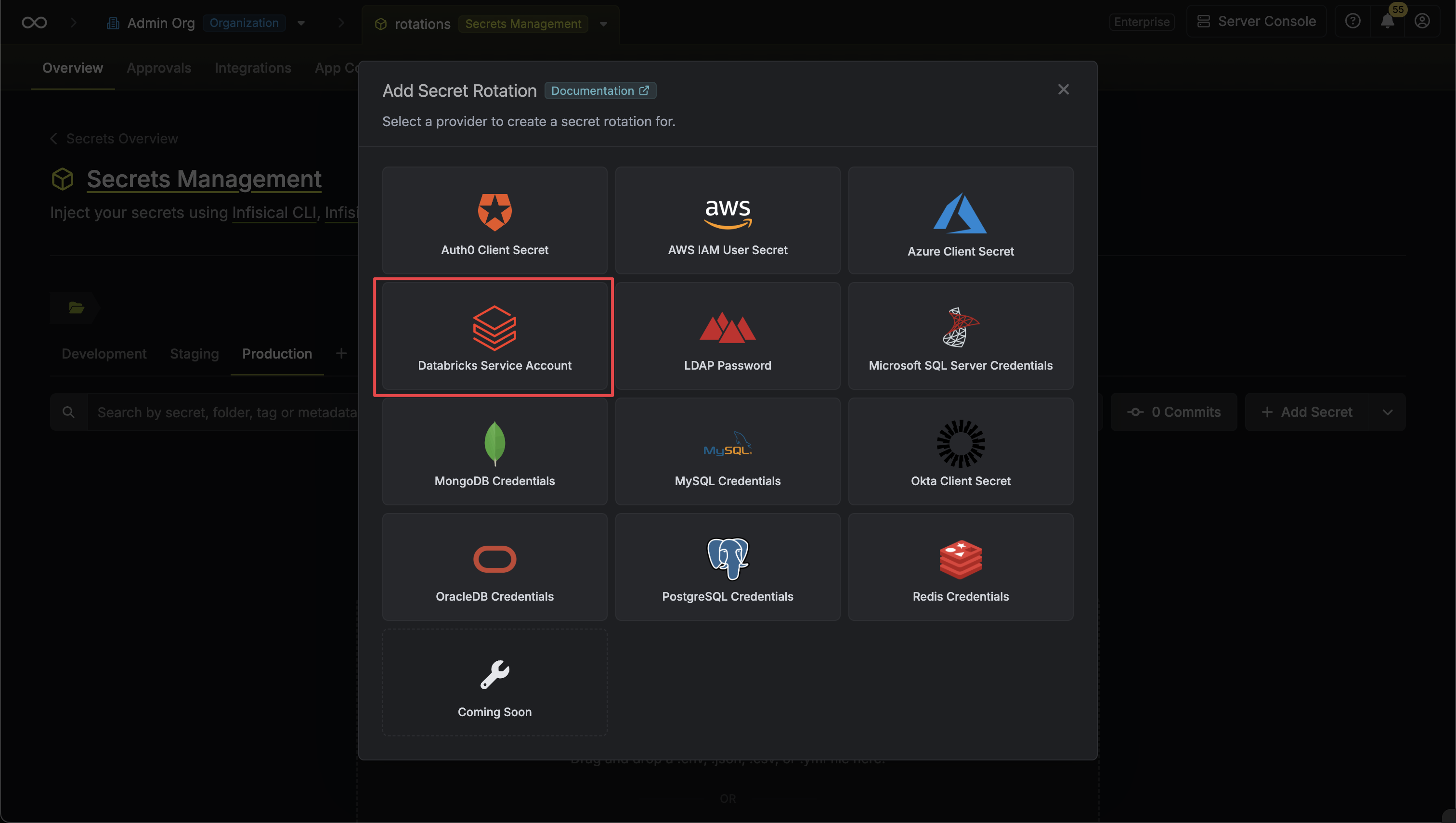
Select the Databricks Service Principal Secret option.
-
Select the Databricks Connection to use and configure the rotation behavior. Then click Next.
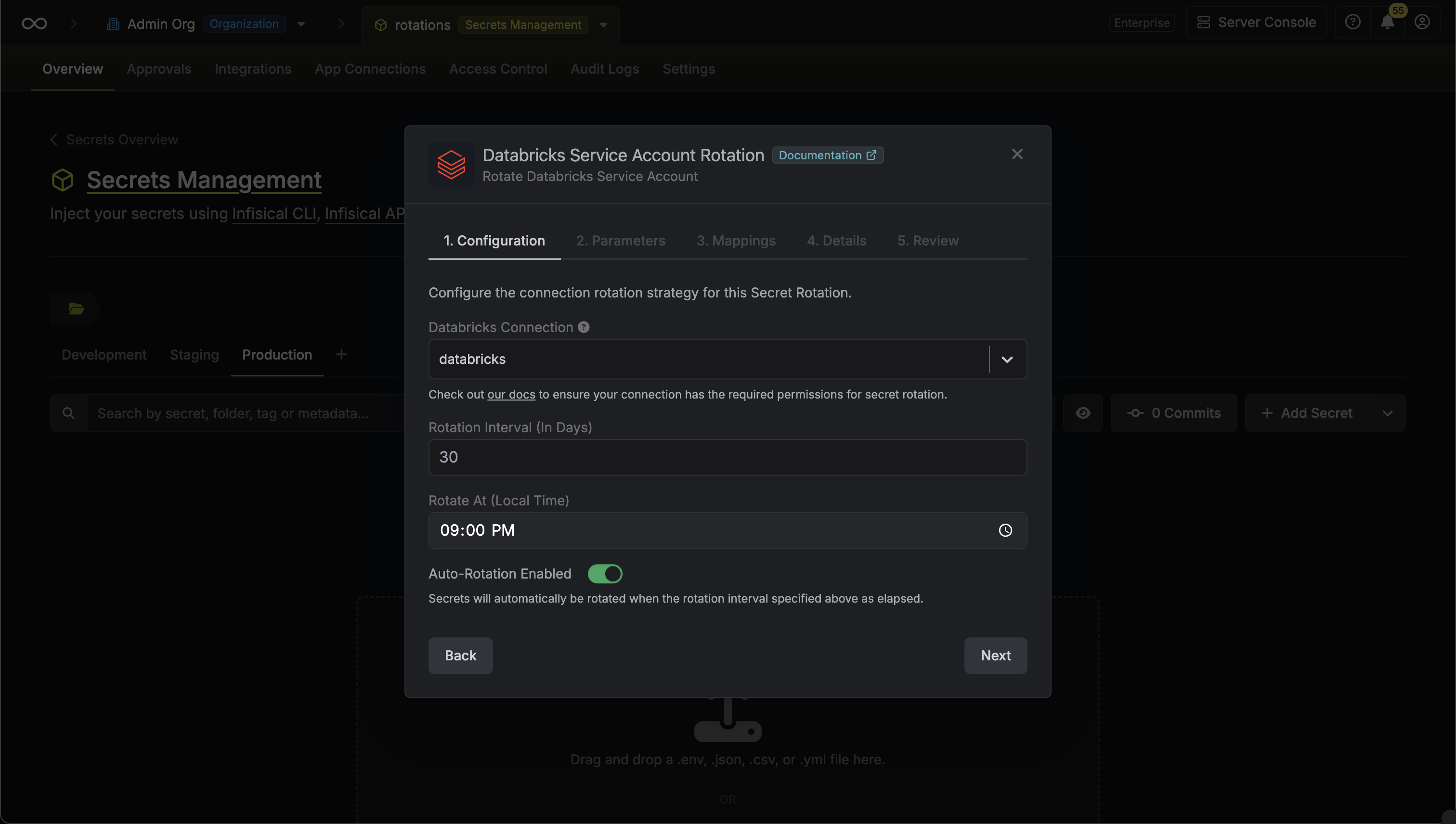
- Databricks Connection - the connection that will perform the rotation of the specified service principal’s OAuth secret.
- Rotation Interval - the interval, in days, that once elapsed will trigger a rotation.
- Rotate At - the local time of day when rotation should occur once the interval has elapsed.
- Auto-Rotation Enabled - whether secrets should automatically be rotated once the rotation interval has elapsed. Disable this option to manually rotate secrets or pause secret rotation.
-
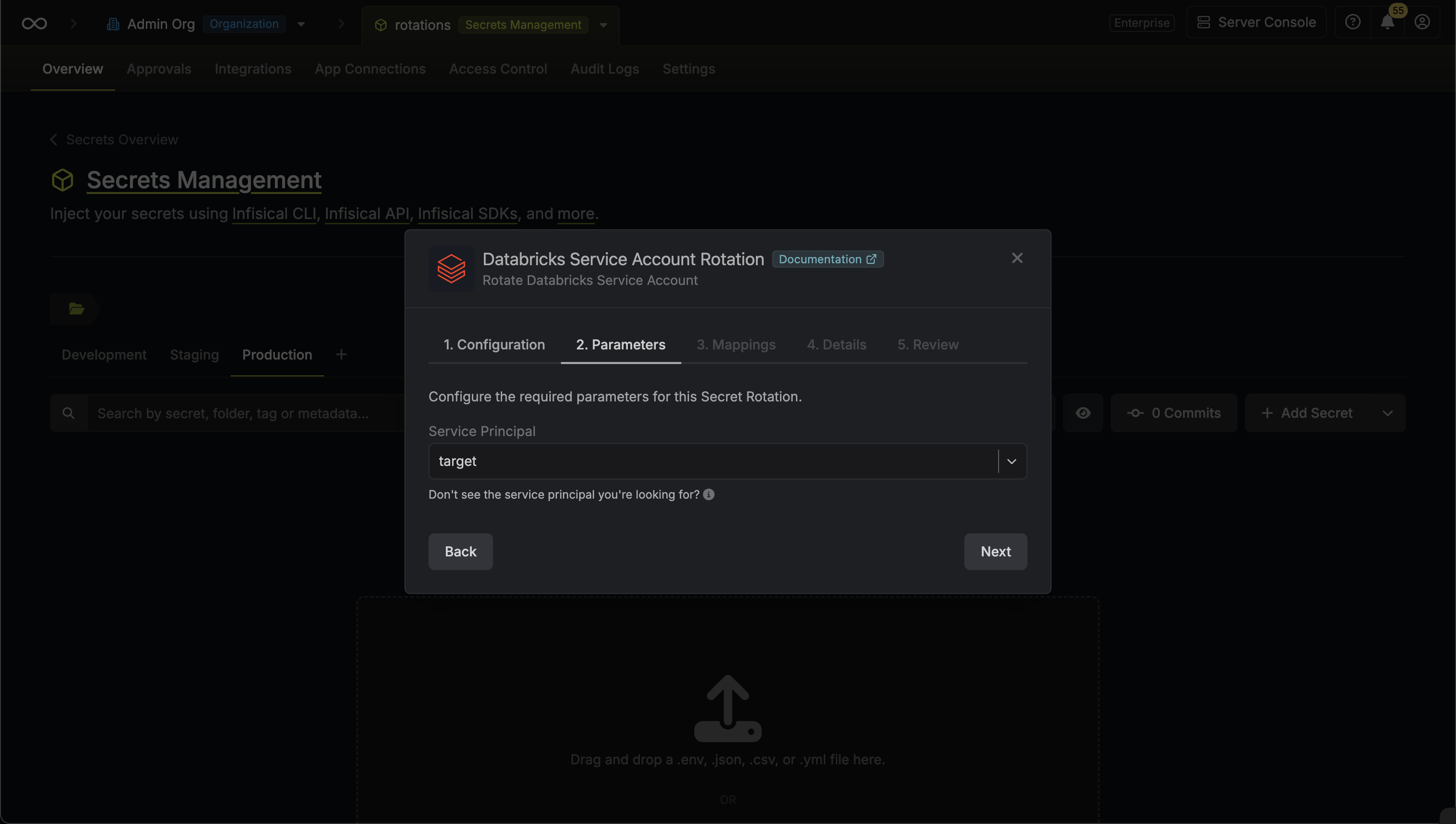
Select the Databricks service principal whose OAuth secret you want to rotate. Then click Next.
-
Specify the secret names that the client credentials should be mapped to. Then click Next.
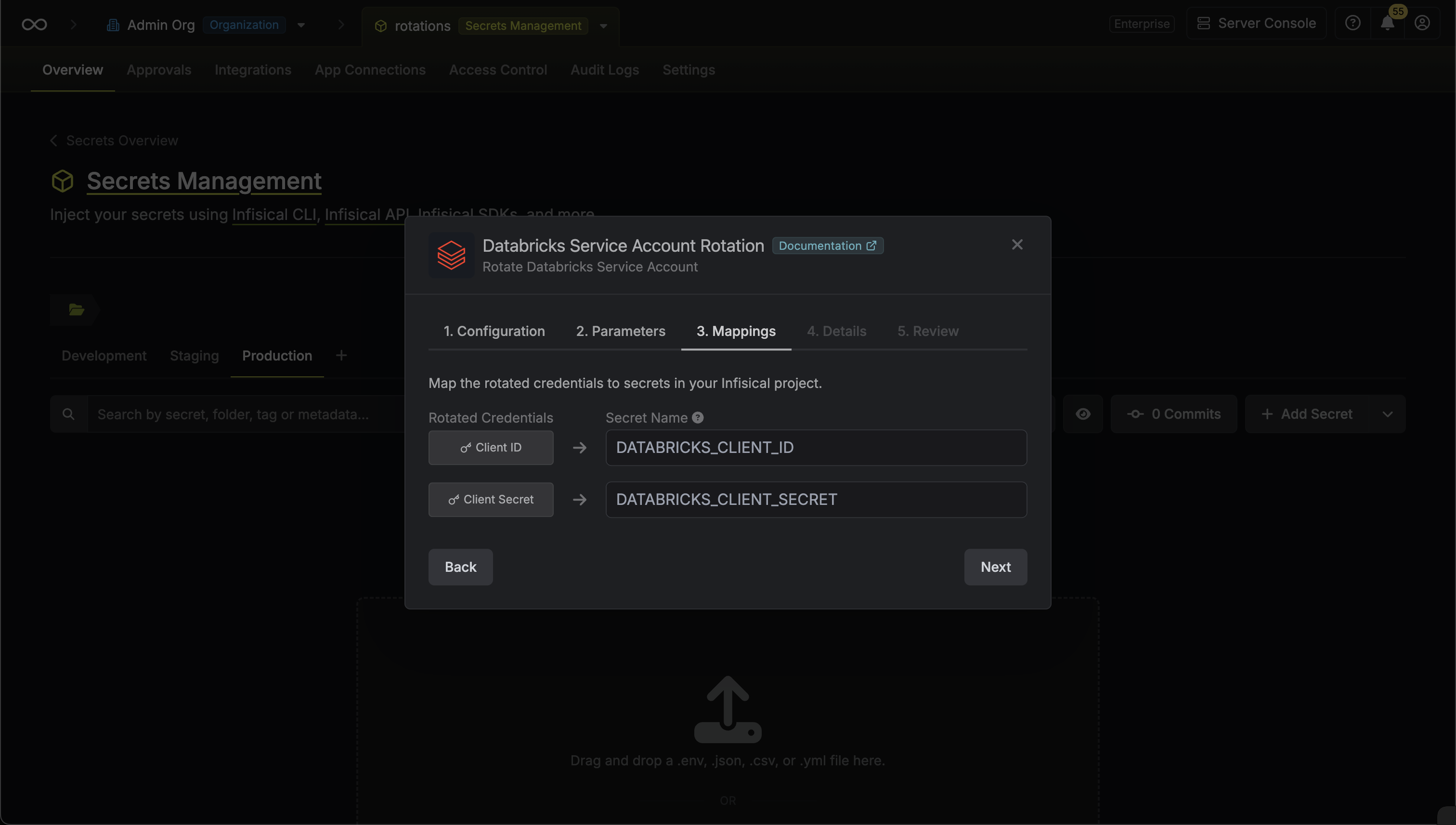
- Client ID - the name of the secret that the service principal Client ID will be mapped to.
- Client Secret - the name of the secret that the rotated OAuth Client Secret will be mapped to.
-
Give your rotation a name and description (optional). Then click Next.
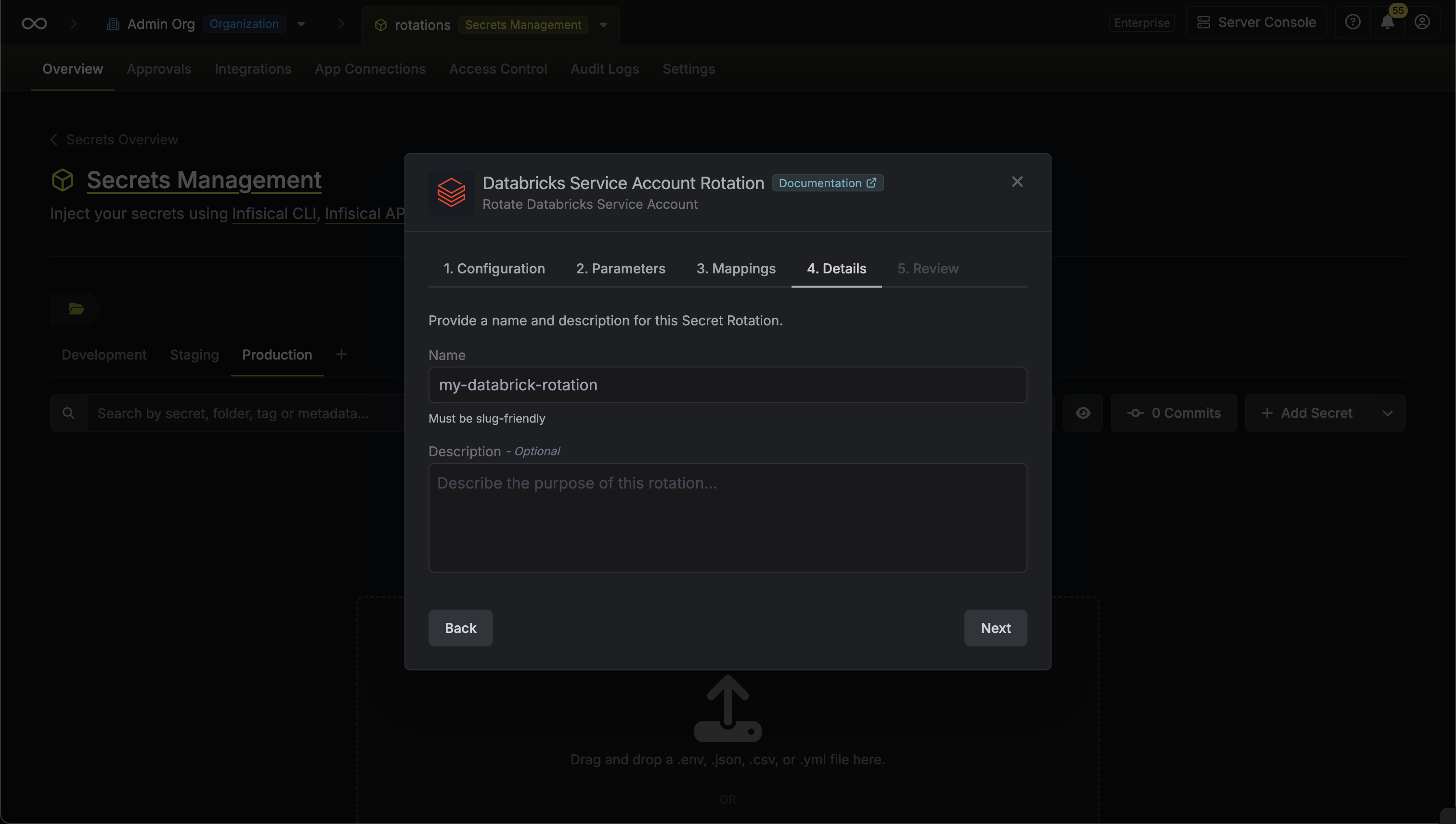
- Name - the name of the secret rotation configuration. Must be slug-friendly.
- Description (optional) - a description of this rotation configuration.
-
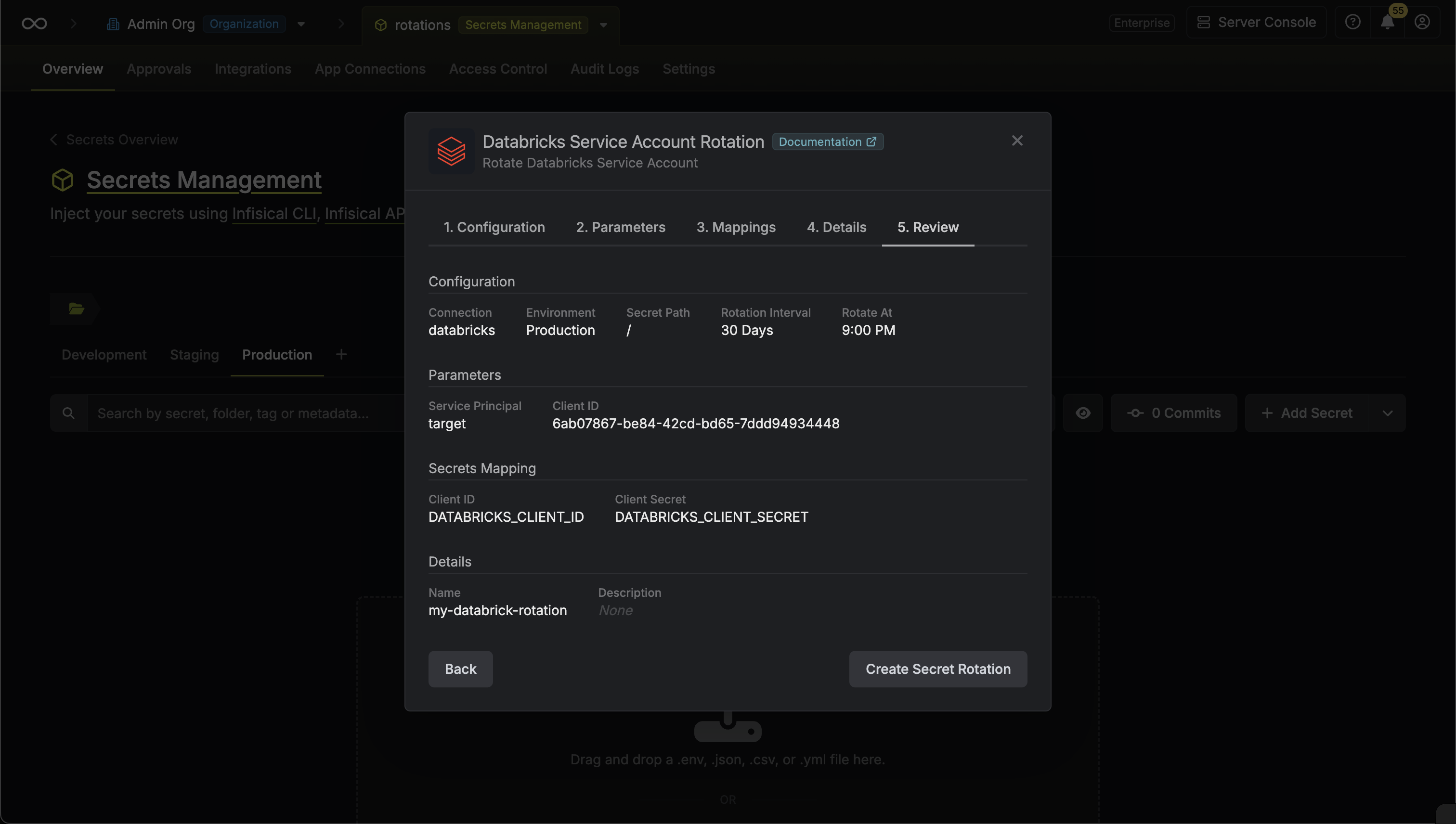
Review your configuration, then click Create Secret Rotation.
-
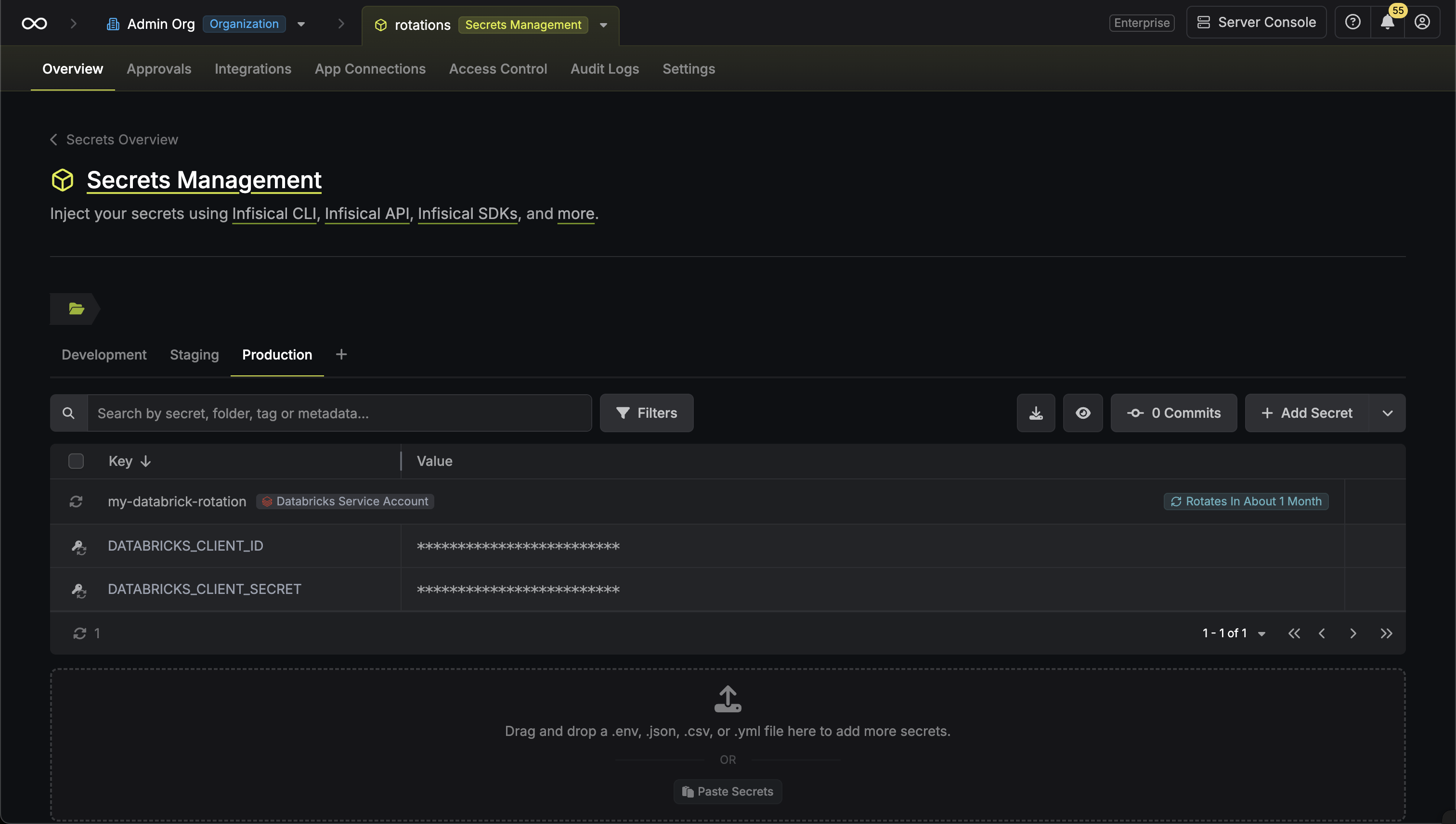
Your Databricks Service Principal Secret credentials are now available for use via the mapped secrets.